It can be stressful to find something unusual in your inbox. You might see a message you do not remember sending or get an alert about a sign-in from another country. You can check it quickly.
I put this guide together to show you how to know if your email is hacked and how to tell real warnings from emails that just look scary. It covers nine signs, a false alarm check, Gmail and Microsoft 365 steps, and what to do next, plus a section for work email, where a hack can mean real financial loss.
Safety note: do not click any link inside a security alert or an email that says your account was hacked. Fake alerts are a common trick. Open your email provider yourself by typing the address or using a saved bookmark.
9 Signs Your Email Has Been Hacked
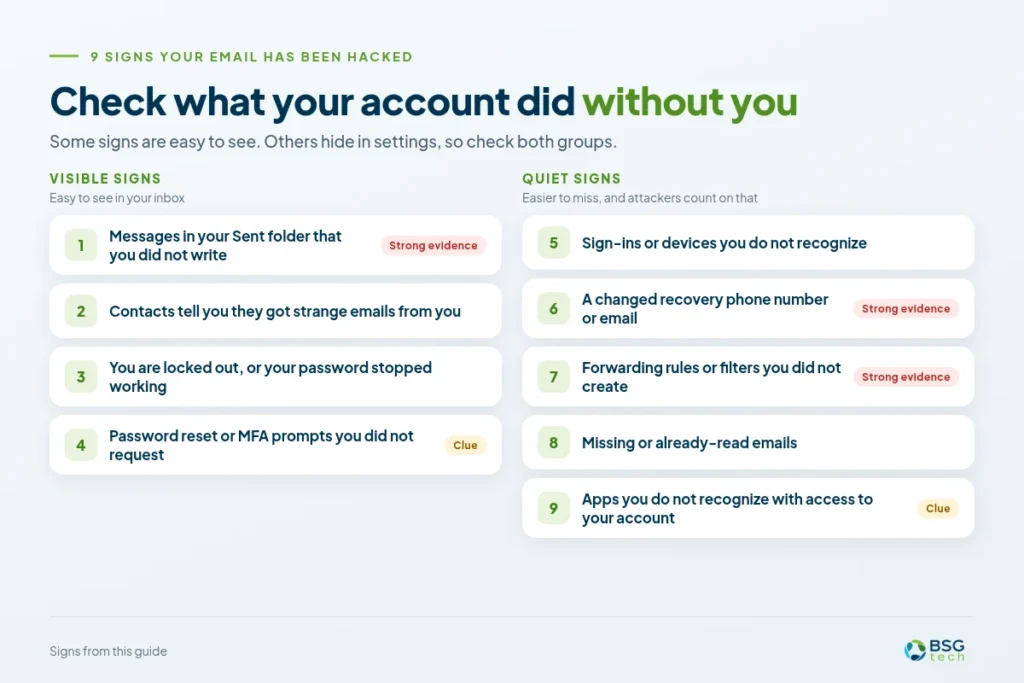
Here is how to tell if your email has been hacked: look at what the account has done without you. Some signs are easy to see. Others hide in settings, so check both groups.
VISIBLE SIGNS
1. Messages in your Sent folder that you did not write
What it looks like: emails sent to people you do not know, odd links, or notes asking for money or gift cards.
What it may mean: someone is sending mail as you. This is strong evidence.
Where to confirm: open the Sent folder inside your email account.
2. Contacts tell you they got strange emails from you
What it looks like: friends or coworkers ask, “Did you mean to send this?”
What it may mean: your account was hacked, or someone faked your address without getting in.
Where to confirm: search your Sent folder for the message. If it is not there, your address was spoofed.
3. You are locked out, or your password stopped working
What it looks like: your correct password fails.
What it may mean: an attacker changed it. It could also be a typo.
Where to confirm: use your provider’s official account recovery page. Never use a link from an email.
4. Password reset or MFA prompts you did not request
What it looks like: a text with a code you never asked for, or an approve-sign-in prompt on your phone.
What it may mean: someone has your password or is guessing it. This is a clue, not proof they got in.
Where to confirm: do not approve it. Check recent activity, then change your password.
QUIET SIGNS
These are easier to miss, and attackers count on that.
5. Sign-ins or devices you do not recognize
What it looks like: a login from a device, browser, or place you have never used.
What it may mean: another person has used your account.
Where to confirm: check recent activity and the device list, and compare the time and device with your own. A VPN can show an odd location, so a place alone is not proof.
6. A changed recovery phone number or email
What it looks like: a recovery address or phone number that is not yours.
What it may mean: strong evidence. Attackers add their own details so they can get back in after you reset the password.
Where to confirm: check each recovery option on your account’s security page.
7. Forwarding rules or filters you did not create
What it looks like: copies of your mail going to an outside address, or rules that move or delete messages with words like “invoice,” “payment,” or “security.”
What it may mean: strong evidence. Mailbox rules let an attacker read your mail quietly and hide the replies.
Where to confirm: open the filters, rules, and forwarding settings. Rules do not show in the inbox.
8. Missing or already-read emails
What it looks like: messages you never opened show as read, or password-reset emails seem to vanish.
What it may mean: someone else has been in your mailbox, or a filter is hiding mail.
Where to confirm: check your rules, then your device list.
9. Apps you do not recognize with access to your account
What it looks like: third-party apps with permission to read or send mail that you never installed.
What it may mean: a clue worth acting on. Some of these apps keep access even after you change your password.
Where to confirm: open the connected apps or third-party access page in your account and remove anything you do not know.
Is It a Real Hack or a False Alarm?
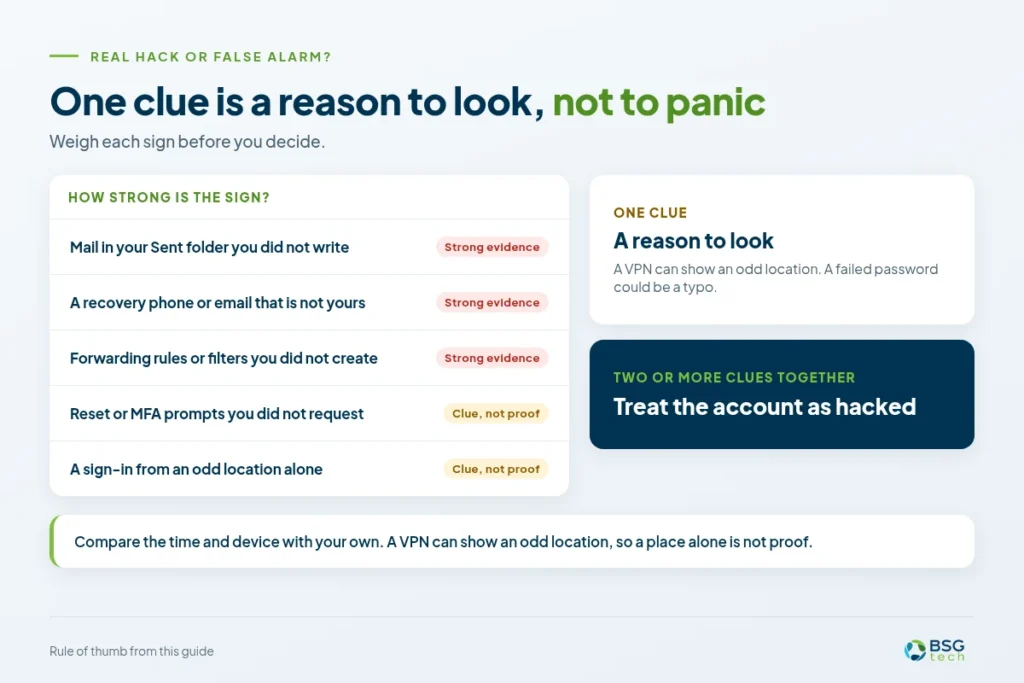
Not every odd thing is a hack. If you are working out how to know if you have been hacked, one clue is a reason to look, not a reason to panic. Use this table to weigh each sign.
| What you notice | How strong a sign it is | How to confirm it | What to do |
|---|---|---|---|
| A sign-in from an unfamiliar location that matches your own device or VPN | Weak. Likely a false alarm | Compare the time and device with your own | No action needed. If the time and device do not match, treat it as a hack |
| A scary alert, but no matching event in your account | Unconfirmed. May be phishing | Check recent activity directly with your provider | Do not click anything in the alert. Delete it or report it as phishing |
| An email that shows your address but is not in your Sent folder | Likely spoofing | Search your Sent folder for the message | Tell contacts to ignore it. Turn on MFA anyway. At work, tell IT |
| A reset or MFA prompt you did not request | A clue to check | Look at recent activity for sign-in attempts you do not recognize | Do not approve it. Change your password and turn on MFA |
| A message in Sent you did not write, plus a forwarding rule you did not create | Strong evidence | Check Sent and your forwarding and rules settings | Treat the account as hacked and follow the steps below |
So, how do I know if my email has been hacked? My rule is simple: if two or more clues show up together, treat the account as hacked.
How to Check If Someone Is Using Your Email
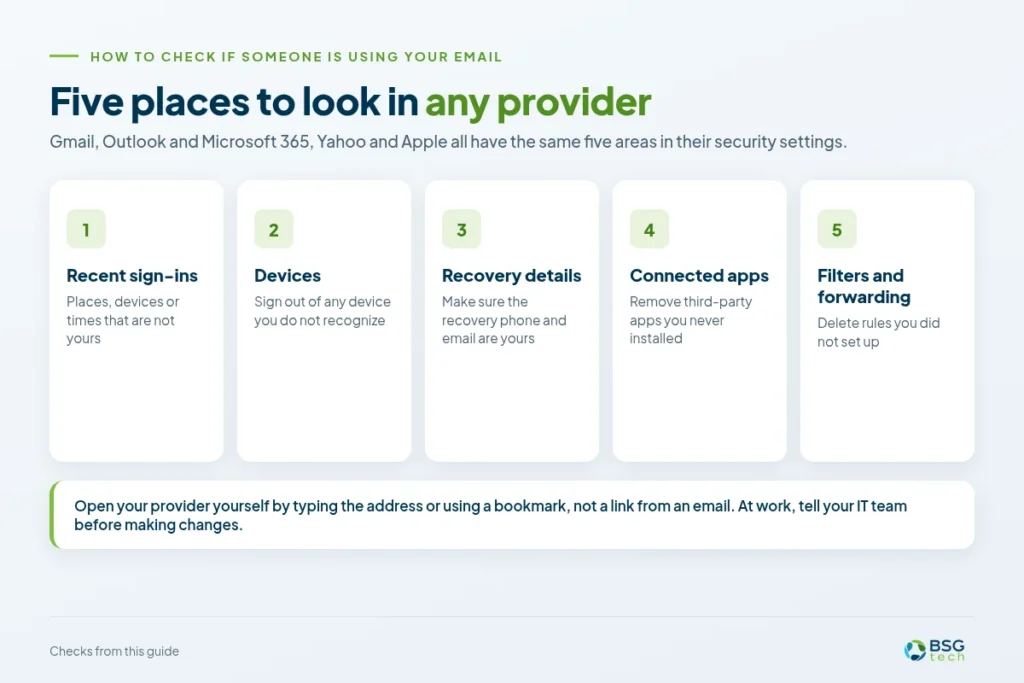
To find out if someone is using your email, look at three things: recent sign-ins, connected devices and apps, and mail rules. Menu names can change, so use the official help pages linked below if your screen looks different.
In Gmail
- Open Gmail by typing the address or using a bookmark, not a link from an email.
- Scroll to the bottom of your inbox and select “Details” next to “Last account activity.” Google explains this in its Gmail activity help page.
- Open your Google Account, go to Security, and review recent security events and “Your devices.” Sign out of any device you do not recognize.
- Still in Security, check your recovery phone number and recovery email. Make sure both are yours.
- Review third-party apps and services with access to your account. Remove any you do not recognize.
- In Gmail, open Settings, then “See all settings.” Check “Filters and Blocked Addresses” and “Forwarding and POP/IMAP” for anything you did not set up.
If you find something wrong, Google’s guide to securing a hacked or compromised Google Account walks you through recovery.
In Outlook and Microsoft 365
- For a personal Outlook.com account, sign in to your Microsoft account page and open the Recent activity page. Microsoft explains it in What is the Recent activity page?.
- For a work or school account, open the My Sign-Ins page. Microsoft’s guide to viewing your work or school sign-in activity shows what to look for. Look for places, devices, or times that are not yours.
- Go to Outlook settings, open Mail, and then choose Rules. Delete any rule you did not set up, especially those that move, delete, or forward your mail.
- In Mail settings, open Forwarding. Check that it is turned off or only forwards to an address you recognize.
- Review your security information and sign-in methods. Remove any phone number, app, or email address you do not recognize.
- At work, tell your IT team before making changes. Admins can see sign-in logs and rules for every mailbox.
In other providers
Yahoo, Apple, and most other providers have the same five areas in their security settings: recent sign-ins, devices, recovery details, connected apps, and filters or forwarding.
What to Do If Your Email Has Been Hacked
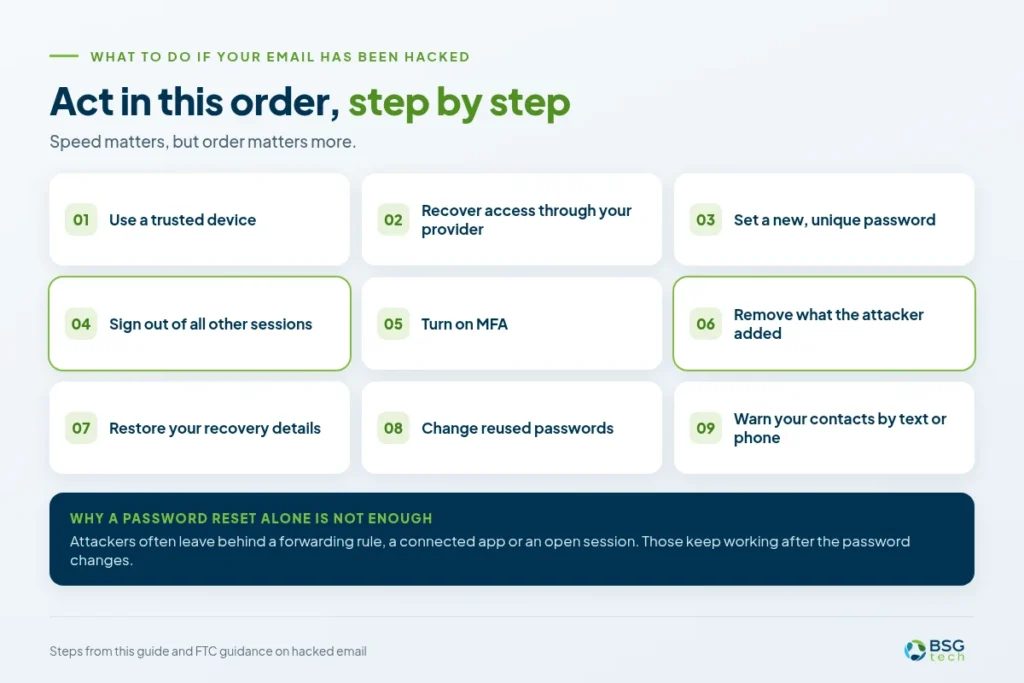
If you are sure, act in this order. Speed matters, but order matters more, because a new password alone will not push an attacker out.
- Use a trusted device. If malware is possible on this one, switch to another phone or computer.
- Recover access through your provider. If you are locked out, use the official recovery page. Do not use a link from an email.
- Set a new, unique password. The FTC suggests a unique password of 12 to 15 characters or a passphrase. See the FTC guidance on hacked email.
- Sign out of all other sessions. Use the session and device lists in the steps above to end any you do not recognize.
- Turn on MFA. Multi-factor authentication adds a second check, so a stolen password is not enough.
- Remove what the attacker added. Delete unknown rules, forwarding addresses, devices, and connected apps.
- Restore your recovery details. Make sure the recovery phone and email are yours.
- Change reused passwords. Start with banking, then reset the password for any account that uses this email.
- Warn your contacts by text or phone. Tell them to ignore strange messages and not to click anything.
Why a password reset alone is not enough: attackers often leave behind a forwarding rule, a connected app or an open session. Those keep working after the password changes, so steps 4 and 6 matter as much as step 3.
If It’s Your Business Email: What Changes
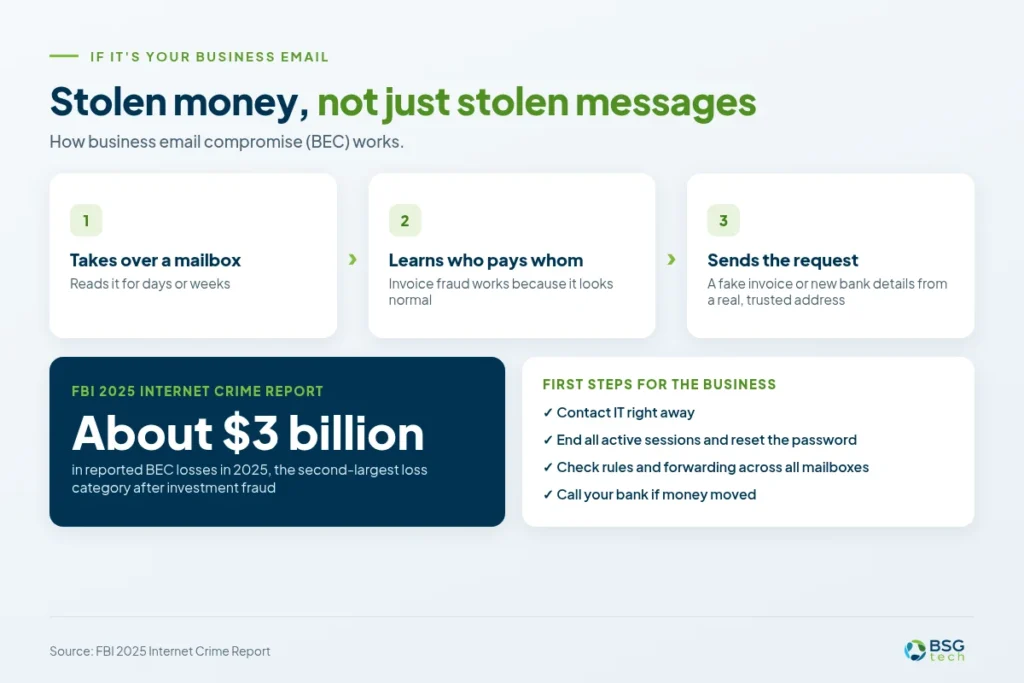
A hacked work account can mean stolen money, not just stolen messages. If it is a work account, tell your IT team before doing anything else.
Why a hacked work account is a bigger problem
This risk is called business email compromise, or BEC. Attackers often read a taken-over mailbox for days or weeks, learn who pays whom, then send a fake invoice or ask to change bank details. The request comes from a real, trusted address, so people believe it.
The FBI’s 2025 Internet Crime Report shows business email compromise caused about $3 billion in reported losses in 2025, the second-largest loss category after investment fraud. In 2024, the FBI received 21,442 BEC complaints and close to $2.8 billion in losses.
If an attacker gets into a Microsoft 365 account, they may also reach calendars and shared files. Fixing a compromised work account takes a response from the whole company, not just a password reset.
Check for invoice and payment fraud
Begin with financial activity. Search your Sent folder for invoices, payment requests, or bank detail changes no one on your team sent, and read vendor or customer replies that mention a new account number. Invoice fraud works because it looks normal.
Steps for the business
- Contact IT right away. Do not wait to be certain before reporting the issue.
- End all active sessions for the affected user and reset the password.
- Check mailbox rules and forwarding across all mailboxes, not just the one you found. Attackers often set rules in more than one account.
- Check other users for the same signs. If one account fell for phishing, others may have too.
- Notify affected clients and vendors by phone or another trusted channel. Tell them not to act on recent payment changes until confirmed.
- If money is moved, contact your bank right away to ask about stopping or recalling the transfer.
- Check your cyber insurance policy. Many policies expect fast notice of an incident, and our guide to cyber insurance requirements explains what insurers look for.
When to call an IT provider
Bring in help if you lost admin access, money was involved, more than one account is affected, or you have no in-house IT. Learn more about our cybersecurity services and our IT help desk.
See how AI phishing attacks are hitting small businesses and what staff should watch for.
Not sure whether your business email is secure?
Start with a free security assessment.
Get a Free Security AssessmentHow to Stop It From Happening Again
The best way to stop a repeat is to make a stolen password useless.
- Use unique passwords and a password manager. One reused password can turn one leak into many hacked accounts.
- Turn on MFA on every account. Start with email, banking, and anything tied to money.
- Never approve a prompt you did not start. Say no, then change your password.
- Review sign-ins and connected apps every few months. Set a reminder.
- Train your staff on phishing. Many business account takeovers start with one employee clicking one email.
Not sure what to put in place first? Read our guide to cybersecurity for small businesses.
Frequently Asked Questions
Can someone hack my email without me knowing?
Yes. Attackers sometimes get in quietly, using things like forwarding rules or connected apps, so your inbox looks normal. They might read your emails for weeks without you noticing. That is why it is important to check your settings, devices, and connected apps regularly.
Can someone hack my email with just my email address?
No. Just knowing your email address does not let someone into your account. However, it can lead to phishing emails or attempts to guess your password. Use a unique password and turn on MFA, so even if someone guesses or finds your password elsewhere, they cannot get in.
How can I check who is logged into my email?
Go to your account’s security page and check recent activity and the list of devices that are signed in. The Gmail and Microsoft steps above show where to look. If you see a device you do not recognize, sign out of it and change your password.
Does an unfamiliar sign-in location mean I’ve been hacked?
Not always. Sometimes VPNs, mobile networks, or company networks can make locations look strange. Check if the time and device match something you did. If they do not, treat the sign-in as suspicious, sign out that session, and secure your account right away.
Is changing my password enough?
No. Changing your password does not close open sessions or remove forwarding rules, connected apps, or changed recovery details. You should also sign out everywhere, remove anything you did not add, restore your recovery details, and turn on MFA so the attacker cannot get back in.
Should I delete my email account if it’s been hacked?
Usually not. Many other accounts, like banking or shopping, use your email for password resets, so deleting it could lock you out. You might also lose important evidence. It is better to secure and recover your account, then clean up any rules, devices, and apps.
What should I do if I can’t sign in?
Go to your provider’s official account recovery page, not a link from an email. Make sure you have your recovery phone or email ready. If it is a work account, contact your IT team or administrator. They can reset your access and check the sign-in logs.
What happens if my work email is hacked?
The biggest risk is invoice and payment fraud, where someone uses your real email to ask for money or change bank details. Let IT know right away, then follow the business steps above: end sessions, check rules, review payments, and notify anyone affected.
Want help securing your business email?
Start with a free security assessment.
Get a Free Security Assessment