You might get an email saying your Microsoft 365 password expires today, an invoice is overdue, or your payment method needs updating. If it looks real enough to make you pause, trust that feeling, as it’s a smart instinct.
The good news is you don’t have to click anything to report it. Learning how to report a phishing email only takes about a minute, and it helps protect everyone who got the same message.
This guide explains how to report a phishing or scam email from your inbox, where to send it, and what steps to take next. If the email reached your work account, the business sections cover what IT does after you report it and how to set up a process for your team. If you’ve already clicked, skip ahead to the last steps.
What to Do First When You Get a Suspicious Email
Phishing works because it rushes you. Slowing down for a minute is your best defense, so start with these steps:
- Do not click any link, open an attachment, reply, or use the unsubscribe link.
- Do not enter a password or payment details, even if the page looks right.
- Keep the email until you’ve reported it. You need it to report it, and IT may need the original to trace it.
- Do not forward it to coworkers to ask if it looks real. Report it or tell IT instead.
- Check the sender yourself. If it claims to be from a bank, vendor, or Microsoft, go to the real website or call a number you already have. Never use the contact details in the email.
A familiar logo or sender name does not prove an email is genuine. Attackers copy both easily. When in doubt, treat the message as suspicious and report it. If you opened it by accident, don’t panic. Skip ahead to what to do if you clicked.
Phishing vs Spam vs Scam: Which One Is It?
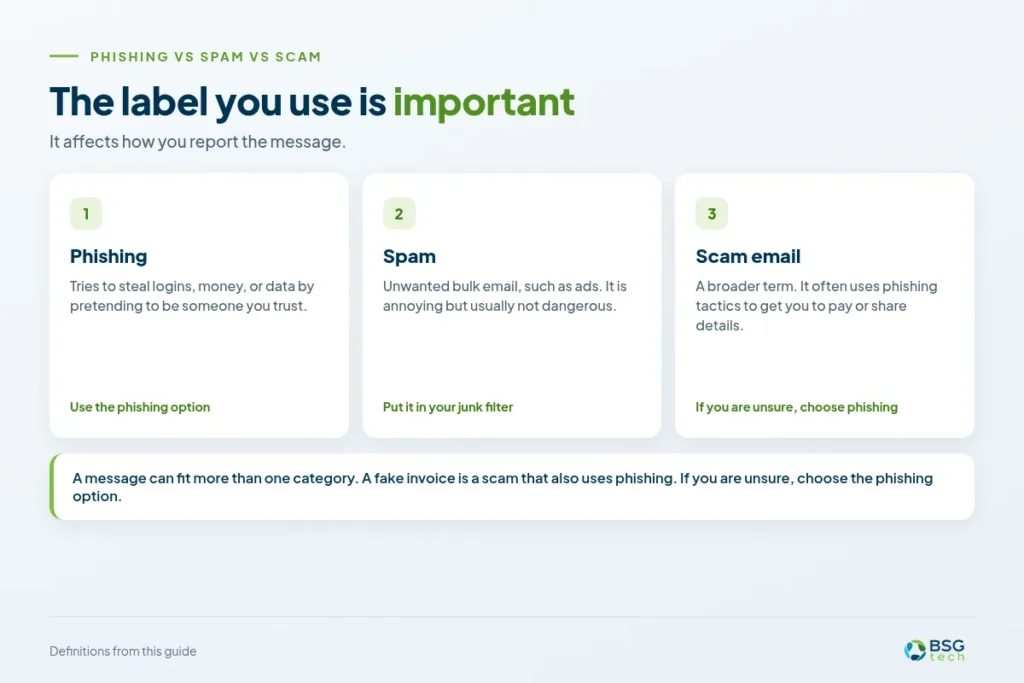
The label you use is important because it affects how you report the message. Here’s a quick summary:
- Phishing tries to steal logins, money, or data by pretending to be someone you trust.
- Spam is unwanted bulk email, such as ads. It is annoying but usually not dangerous.
- Scam email is a broader term. It often uses phishing tactics to get you to pay or share details.
A message can fit more than one of these categories. For example, a fake invoice is a scam that also uses phishing.
Put spam in your junk filter. Use the phishing option to report phishing so your provider or IT team knows it’s a threat. If you’re unsure how to report a scam email, choose the phishing option.
Common warning signs include:
- Urgent account or payment warnings
- Invoices you did not expect
- Requests to confirm personal or banking details
- Login links, or a sender address that does not match the company
- Unusual requests from a “boss” or vendor
You do not need to be certain. If a message feels off, report it. Your provider or IT team can sort out the rest.
Today’s attacks can look polished and personal. See how AI phishing attacks work to learn how they are built.
How to Report a Phishing Email in 4 Steps
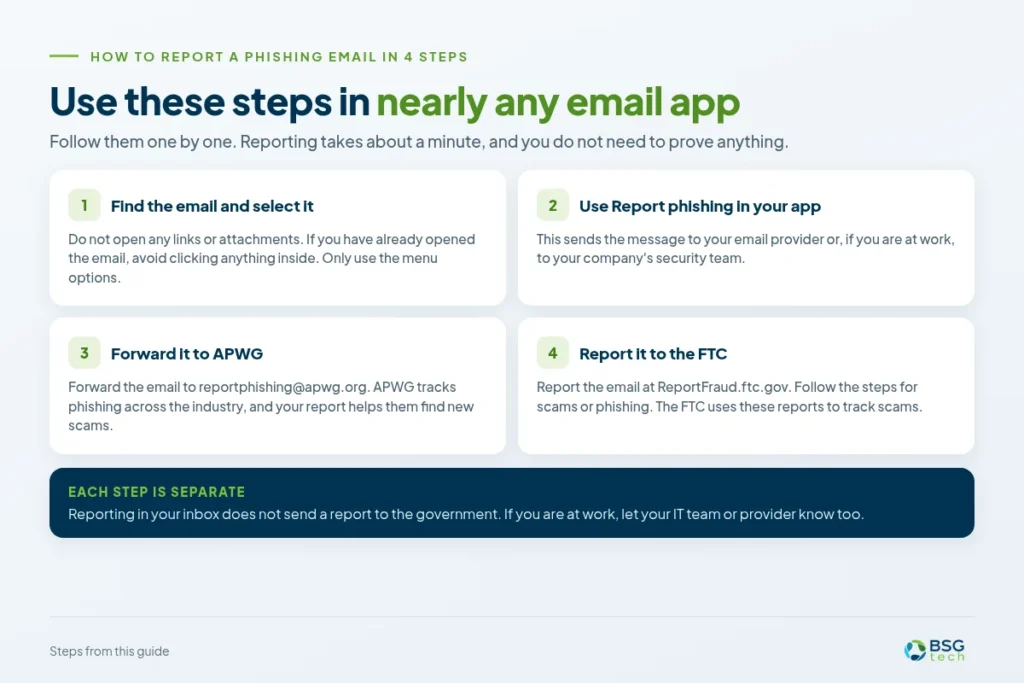
You can use these steps in nearly any email app. Just follow them one by one.
- Find the email in your inbox and select it. Don’t open any links or attachments. If you’ve already opened the email, avoid clicking anything inside. Only use the menu options.
- Look for the Report phishing option in your email app. Most apps let you report an email as phishing in two clicks. Menus can be different, and the next sections will help you find it. This sends the message to your email provider or, if you’re at work, to your company’s security team.
- You can also forward the email to the Anti-Phishing Working Group (APWG) at reportphishing@apwg.org. APWG tracks phishing across the industry, and your report helps them find new scams.
- You should also report the email to the FTC at ReportFraud.ftc.gov. Follow the steps for scams or phishing. The FTC uses these reports to track scams.
These steps are also the core of how to report scam emails. Reporting takes about a minute, and you do not need to prove anything.
If you’re at work, let your IT team or provider know too, following your company’s process. Many people skip this step, but it helps protect everyone else at your company.
Each of these steps is separate. Reporting in your inbox doesn’t send a report to the government. Filing with the FTC won’t remove the email from other inboxes at your company. The APWG and FTC routes are for people in the US.
Where to Report a Phishing Email
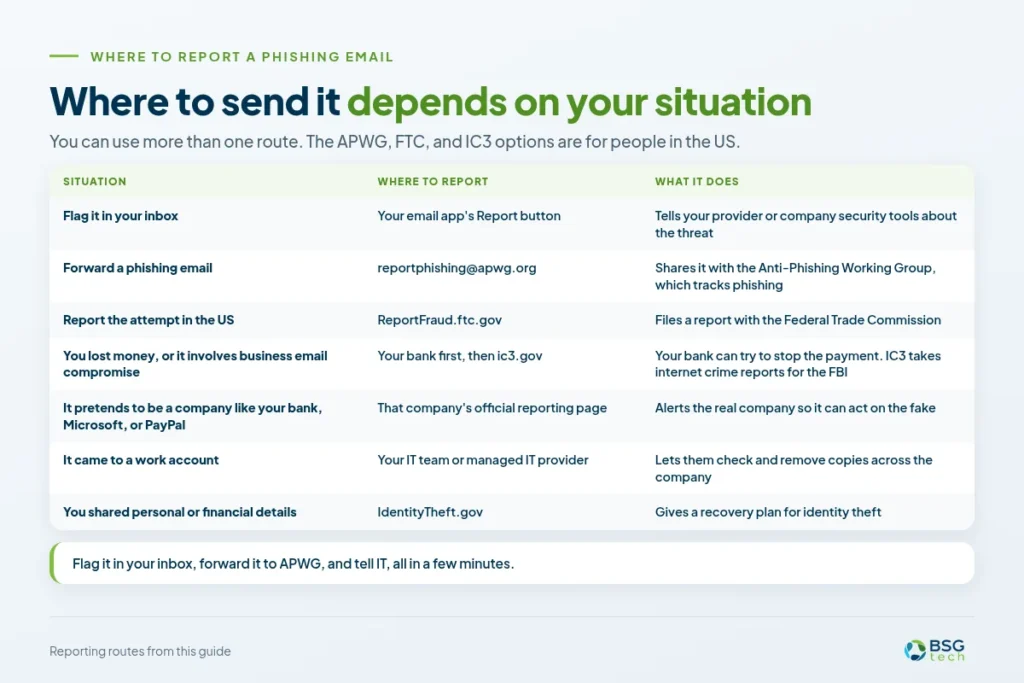
If you are wondering where to send phishing emails, the answer depends on your situation. The same routes work if you need to report fraudulent emails.
| Situation | Where to report | What it does |
|---|---|---|
| Flag it in your inbox | Your email app’s Report button | Tells your provider or company security tools about the threat |
| Forward a phishing email | reportphishing@apwg.org | Shares it with the Anti-Phishing Working Group, which tracks phishing |
| Report the attempt in the US | ReportFraud.ftc.gov | Files a report with the Federal Trade Commission |
| You lost money, or it involves business email compromise | Your bank first, then ic3.gov | Your bank can try to stop the payment. IC3 takes internet crime reports for the FBI |
| It pretends to be a company like your bank, Microsoft, or PayPal | That company’s official reporting page | Alerts the real company so it can act on the fake |
| It came to a work account | Your IT team or managed IT provider | Lets them check and remove copies across the company |
| You shared personal or financial details | IdentityTheft.gov | Gives a recovery plan for identity theft |
You can use more than one route. Flag it in your inbox, forward it to APWG, and tell IT, all in a few minutes. The FTC’s phishing guidance lists these same routes.
How to Report Phishing in Outlook and Microsoft 365
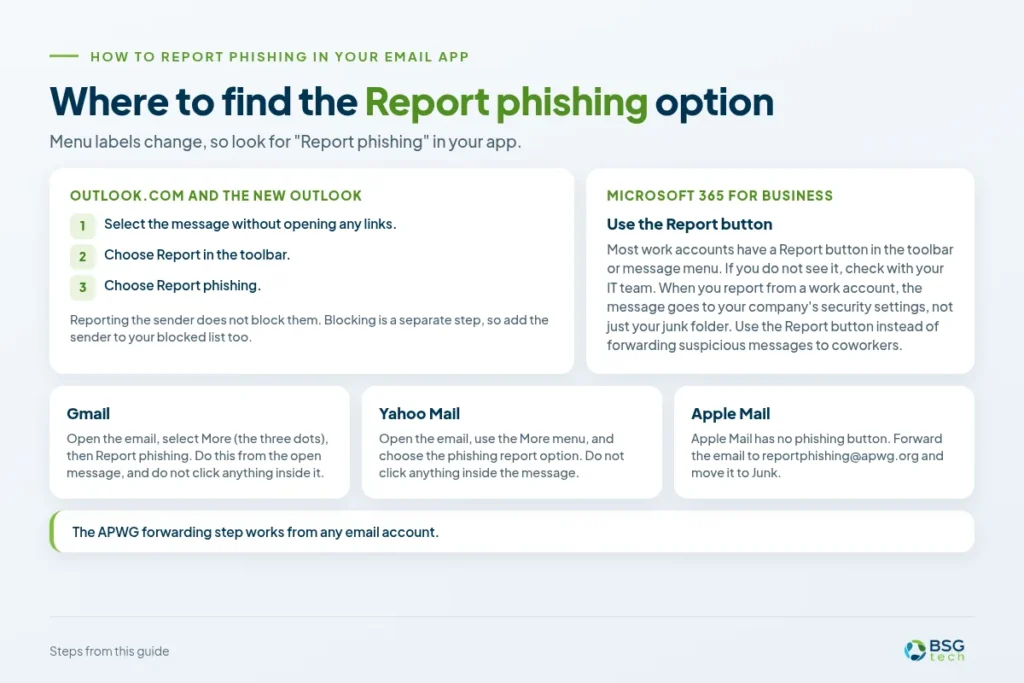
Most small businesses run on Microsoft 365, so start here. Menu labels change, so check Microsoft’s help page on reporting phishing in Outlook if yours looks different.
Outlook.com and the New Outlook
- Select the message without opening any links.
- Choose Report in the toolbar.
- Choose Report phishing.
This is also how to report a scam email in Outlook. One catch: reporting the sender does not block them. Blocking is a separate step, so add the sender to your blocked list too.
On the Outlook mobile app, the report option is in the message menu. Microsoft’s help page covers the current mobile steps.
The Report Button in Microsoft 365 for Business
Most work accounts have a Report button built into Outlook on the web, desktop, and mobile. You’ll usually find the report phishing button in the toolbar or message menu. In most setups, this is also how you report phishing to Microsoft from a work account. If you don’t see it, check with your IT team.
If your company uses Microsoft 365, ask IT or your provider to show everyone where the button is. A quick two-minute demo at a staff meeting is usually enough. When staff know where to find it, they’re more likely to use it.
When you report from a work account, the message goes to your company’s security settings, not just your junk folder. Use the Report button instead of forwarding suspicious messages to coworkers.
What Your IT Admin Sees When You Report
When you report a message, your IT admins can see it, find every copy of that email in the company, and remove them all. That’s why reporting is better than just deleting. If you only delete it, no one else knows about it. You don’t have to worry about the details. Just press the button, and your IT team will handle the rest.
How to Report Phishing in Gmail, Yahoo and Apple Mail
Personal email accounts work a little differently. Here are the three most common.
Gmail
To report a phishing email to Google, open the email, select More (the three dots), then Report phishing. This is also how to report a scam email to Gmail. Do this from the open message, and do not click anything inside it.
Yahoo Mail
Open the email, use the More menu, and choose the phishing report option. This is also how to report a scam email to Yahoo. Again, do not click anything inside the message.
Apple Mail
Apple Mail has no phishing button. Forward the email to reportphishing@apwg.org and move it to Junk. Moving it to Junk helps the filter catch similar messages.
Menu labels change, so look for “Report phishing” in your app. On other providers, it is usually under a three-dot or More menu. The APWG forwarding step works from any email account.
What Happens After an Employee Reports a Phishing Email
Most guides leave this part out. From my experience running IT and security for local businesses, what happens in the first few minutes after reporting a phishing email makes all the difference. Here’s what a good IT team does:
Why a hacked work account is a bigger problem
- Confirms whether the email is malicious. IT checks the sender, links and attachments safely before anyone decides.
- Searches for the same email in every inbox and removes it. Attackers usually send the same message to many people at once.
- Blocks the sender and any malicious links or domains, so the same trick does not work again.
- Checks whether anyone clicked, replied, or entered a password. This is the most urgent question, so staff should answer it honestly.
- Resets credentials and checks MFA for anyone affected. A new password alone is not enough if multi-factor settings were changed.
- Records the incident and tells staff what to watch for. A short note turns one report into a lesson for everyone.
The sooner this starts, the fewer inboxes IT needs to check. Good IT teams also watch for patterns, since repeat emails can show which accounts or departments are being targeted.
Speed is important. A quick report can protect the whole company, since the other copies can be removed before anyone opens them. That’s why it’s better to report phishing emails right away instead of just deleting them.
If you do not have someone to do this, our team handles incident response and 24/7 threat detection as part of our cybersecurity services.
How to Set Up a Phishing Reporting Process for Your Team
A reporting habit works better than a one-time warning. Five building blocks make it simple:
- One clear reporting method. Pick the Report button and make sure everyone knows where it is. Show it at a staff meeting.
- One person or provider who receives reports. Staff should always know exactly who gets reports, so they never end up split across three different people.
- A no-blame rule. People must feel safe reporting a mistake right away. If someone gets blamed for clicking, the next person will stay quiet.
- A short written guide in onboarding. One page is enough: what to do, where the button is, and who to tell.
- Regular training and phishing simulations. Practice keeps the habit fresh and shows you who needs more help.
Start small. A one-page guide and a clear point person are far better than nothing. Share it at onboarding and once a year. When staff feel safe reporting a click, IT gets minutes to respond instead of days.
Businesses in Illinois should also review the rules that apply to them. See our guide to Illinois cybersecurity compliance.
Train your team to spot and report phishing
BSGtech offers security awareness training and phishing simulations that help your staff report suspicious emails with confidence.
Learn About Security Awareness TrainingWhat to Do If You Already Clicked a Phishing Link
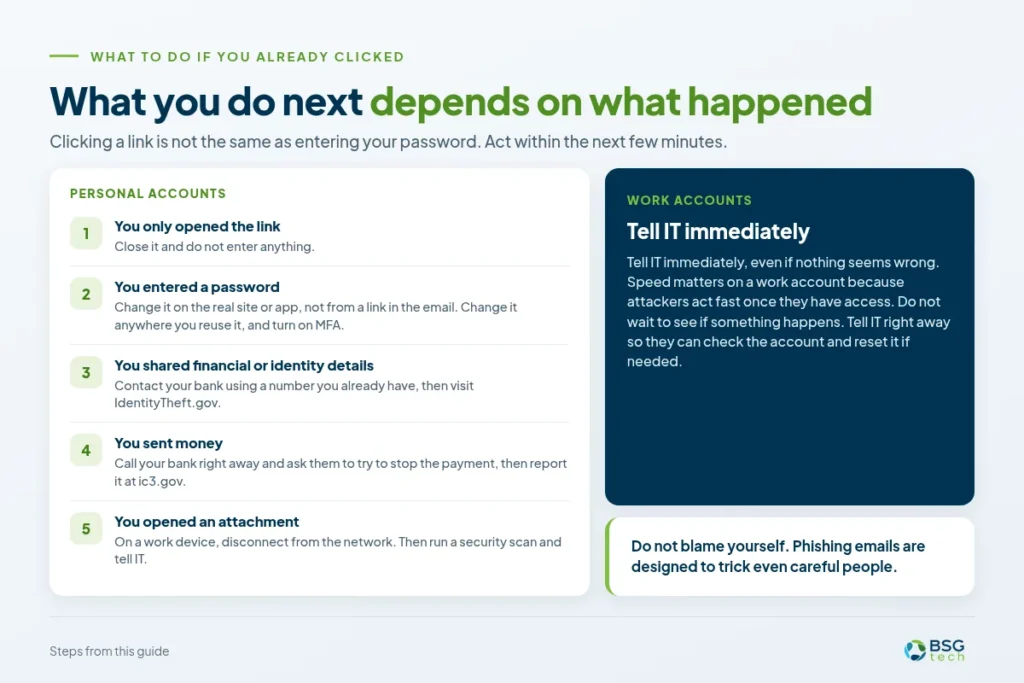
Clicking a link isn’t the same as entering your password, and phishing is built to fool careful people. What you do next depends on what happened, so act within minutes, not days.
Personal accounts
- You only opened the link: close it and do not enter anything.
- You entered a password: change it on the real site or app, not from a link in the email. Change it anywhere you reuse it, and turn on MFA.
- You shared financial or identity details: contact your bank using a number you already have, then visit IdentityTheft.gov.
- You sent money: call your bank right away and ask them to try to stop the payment, then report it at ic3.gov.
- You opened an attachment: run a security scan with your antivirus software and remove anything it finds.
Work accounts
Tell IT immediately, even if nothing seems wrong, because attackers act fast once they have access. If you opened an attachment on a work device, disconnect it from the network first. IT can then check the account and reset it if needed. See signs your email has been hacked for what to check.
Frequently Asked Questions About Reporting Phishing
How do I report a phishing email?
First, use your email app’s Report phishing option. Next, forward the message to reportphishing@apwg.org and report it at ReportFraud.ftc.gov. These steps are separate, so make sure to do all three. If you’re using a work account, let your IT team know so they can check for other copies.
How do I report a scam email?
You can follow the same steps. Use your app’s Report option, forward the message to APWG, and report it to the FTC. If you lost money, contact your bank first, then report it at ic3.gov. If you’re on a work account, let IT know too.
Can I report a phishing email without opening it?
Yes. Just select the email in your inbox and use the Report option. You don’t need to open the message, and it’s safer not to. Opening it can load hidden tracking images that tell the sender your address is active. Reporting from your inbox only takes a few seconds.
Does reporting a phishing email block the sender?
Not always. In Outlook.com, reporting doesn’t block the sender. Blocking is a separate step, so add the sender to your blocked list if you want to stop their messages. Doing both gives you better protection, since each step works differently.
Is marking an email as spam the same as reporting phishing?
No. Marking something as spam helps train the junk filter. Reporting phishing flags a security threat and, on work accounts, can alert IT. If a message tries to steal information or money, use the phishing option instead of spam. Using the right label helps the right team respond.
Should I delete a phishing email?
Report the email first. If you’re on a work account, let IT confirm before you delete it so they can find and remove other copies. Deleting too soon might leave the email in your coworkers’ inboxes. If you work alone, just report it and then delete it.
How do I report a blackmail or extortion email?
Don’t reply or pay. Report the email at ic3.gov, and contact local police if your safety is threatened. Keep the message as evidence and don’t engage with the sender. If you’re on a work account, let your IT team know.
How do I report a phishing email pretending to be Microsoft?
Use the Report button in Outlook, and don’t sign in through any link in the message. If you need to check your account, type the real Microsoft address yourself. This keeps you away from fake sign-in pages. If you’re on a work account, let IT know too.
Protect Your Team Before the Next Phishing Email
Here’s the sequence to remember: Don’t interact with the message. Report it in your app, report it externally, and tell IT if it reached a work account. This way, you report a phishing email without giving the attacker another chance.
If you run a business and want someone to review your email security, I’d be happy to help. BSGtech supports businesses throughout the Chicago suburbs.
Want help protecting your business email?
Get a Free Security Assessment and find out what to fix first.
Get a Free Security Assessment