That range is wide for a reason. Build quality, workload, and heat all move the number.
This guide breaks it down by brand and by component. You’ll see the warning signs of a failing laptop. You’ll get a rule for repair versus replace. You’ll also get the replacement cycle most businesses use.
The Short Answer: How Many Years Does a Laptop Last on Average?
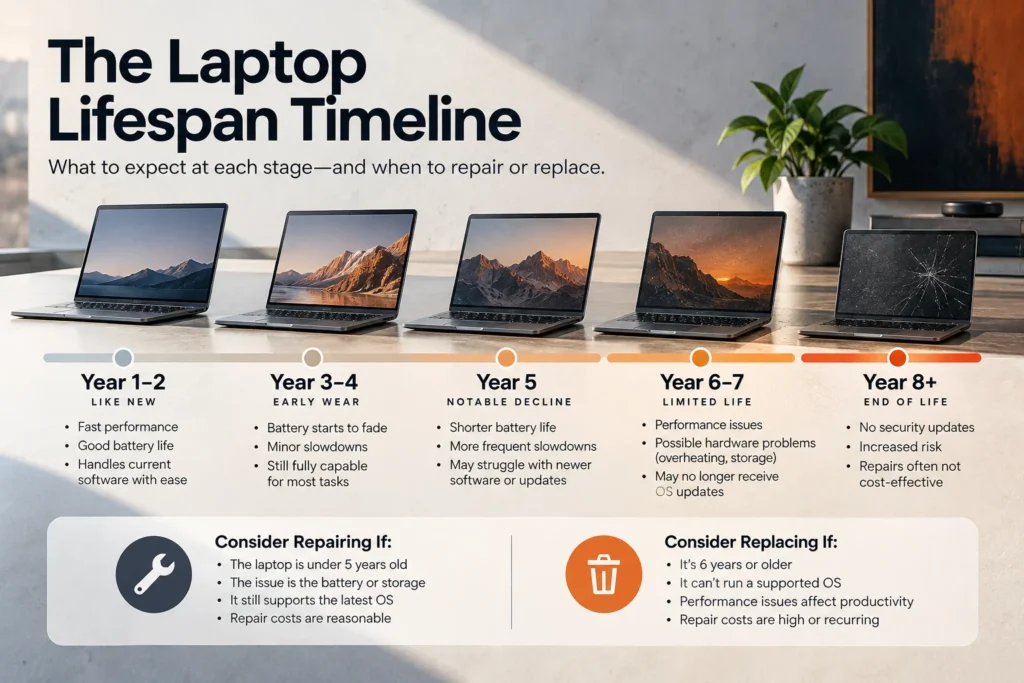
A typical consumer laptop lasts three to five years. A business-class laptop lasts four to seven.
Those numbers describe useful life, not the moment the machine dies. A laptop can still boot at year eight. The question is whether it runs current software, holds a charge, and stays secure.
Three things usually end a laptop’s working life:
- The battery no longer holds a useful charge
- Heat builds up and the processor throttles to stay safe
- The hardware can’t run an operating system that still gets security updates
That last one matters most in a business. An unsupported machine is a security problem, not just a slow one.
Consumer Laptops vs. Enterprise Business Laptops
Business-class laptops last longer because they’re built differently.
Think Lenovo ThinkPad, HP EliteBook, and Dell Latitude. They use magnesium or aluminum alloy chassis. Hinges are reinforced. Components such as RAM and storage are often modular, so they can be replaced instead of scrapped. Manufacturer driver support runs longer too.
Consumer models cut cost somewhere. Usually it’s the chassis, the hinge, the cooling, or the soldered-in parts that can’t be upgraded later.
Why do business laptops last longer than consumer laptops? Business-class laptops last four to seven years because they feature alloy chassis, reinforced hinges, modular upgradeable components, and longer manufacturer driver support compared to plastic consumer models.
How Long Do Windows Laptops Last Compared to MacBooks?
The hardware gap is smaller than people think. The software support window is where they differ.
Apple supports most Macs with new macOS releases for roughly seven years after release, then adds a couple of years of security updates. That gives MacBooks a long, predictable tail.
Windows laptops depend on the hardware requirements of the current Windows release. Windows 11 requires TPM 2.0 and a supported processor. Machines that miss those requirements got stranded when Windows 10 support ended on October 14, 2025. Check your fleet against Microsoft’s current processor support list before you assume a machine has years left.
One more factor: repairability. A model with a replaceable battery, socketed RAM, and an upgradable drive can be kept alive cheaply. Check the model’s iFixit repairability score before you buy.
Average Laptop Lifespan by Brand: How Major Manufacturers Compare
Brand matters less than product line. Every major manufacturer sells both a budget line and a business line, and the gap between them is wide.
| Product line | Typical useful life | What drives it |
|---|---|---|
| Budget consumer (under $600) | 2 to 4 years | Plastic chassis, limited cooling, soldered components |
| Mid-range consumer | 3 to 5 years | Better cooling, some upgradeable parts |
| Business class | 4 to 7 years | Alloy chassis, modular parts, long driver support |
| Premium ultraportable | 4 to 6 years | Strong build, but often sealed and hard to service |
How Long Does an HP Laptop Last? (Pavilion vs. EliteBook/ProBook)
HP’s consumer Pavilion line typically lasts three to four years. The EliteBook and ProBook business lines typically last five to seven.
The difference is in the build and the support. EliteBooks use metal chassis and pass military-standard durability testing. They also get longer enterprise driver and BIOS support, which matters when you’re managing dozens of identical machines.
If you’re buying for a business, the higher upfront cost of an EliteBook usually wins on cost per year.
Dell Lifespan Expectations (Inspiron vs. Latitude/XPS)
Dell’s Inspiron line lands in the three to four year range. Latitude, the business line, runs five to seven.
The XPS line sits in between. Build quality is excellent. Serviceability is limited, since much of it is sealed and thin. Expect four to six years.
Latitude models are the ones built for fleet management: consistent imaging, long parts availability, and business-grade warranty options.
Lenovo Lifespan Benchmarks (IdeaPad vs. ThinkPad)
IdeaPad, Lenovo’s consumer line, typically lasts three to four years. ThinkPad runs five to seven, and often longer.
ThinkPads have the strongest reputation for longevity in the category. They’re widely serviceable, parts stay available for years, and Lenovo publishes hardware maintenance manuals. That combination is why you still see ten-year-old ThinkPads in daily use.
Apple MacBook Longevity Trends
MacBooks typically last five to eight years.
Apple Silicon models run cool and use very little power, which reduces thermal wear. Apple’s long macOS support window extends the usable life further.
The tradeoff is serviceability. RAM and storage are soldered on. What you buy is what you keep, so size the specification for the full life of the machine rather than for today. Battery service is available through Apple, and replacing a battery at year four is far cheaper than replacing the laptop.
What Are the Longest Lasting Laptops on the Market Today?
The longest lasting laptops share four traits. Look for these rather than for a brand name.
- A metal chassis and reinforced hinges. Hinges are the most common physical failure point.
- Serviceable parts. A replaceable battery, socketed RAM, and a standard M.2 drive add years.
- A long software support window. Check macOS support or Windows 11 processor eligibility before buying.
- Real cooling. Two fans and copper heat pipes beat a thin, silent design over time.
Business lines check most of these boxes. So do a handful of repair-focused brands that publish parts catalogs and service guides.
How Long Should a Work Laptop Last? B2B & Enterprise Lifecycle Standards
In a business, laptop lifespan is a budget decision, not a guess. You replace on a schedule so you’re never surprised.
How often should businesses replace work laptops? Most organizations should refresh work laptops every three to five years. Enterprise laptops average roughly 3.7 years of service before battery degradation, rising maintenance costs, and software incompatibility start to cut into productivity.
The Standard 3-to-5-Year Corporate IT Replacement Cycle
The three-to-five-year cycle exists for practical reasons.
Manufacturer warranties typically run three years, with extensions to four or five. Once the warranty ends, every failure becomes an unplanned expense. Depreciation schedules often match that window too, so the asset is written down around the time it starts costing more to keep.
The cycle also spreads cost. Replacing a third of your fleet each year is far easier to budget than replacing everything at once.
How Often Should Laptops Be Replaced in a Business Setting?
It depends on the role. Not every employee needs the same cycle.
| Role | Suggested cycle | Reason |
|---|---|---|
| Engineering, design, data work | 3 years | Heavy workloads age hardware faster |
| Sales and field staff | 3 years | Travel and handling wear devices out |
| General office and admin | 4 to 5 years | Light workloads, mostly browser and email |
| Shared or kiosk machines | 5 years | Fixed workload, low mobility |
Move a laptop down the chain instead of retiring it. A three-year-old engineering machine often has two good years left as an admin device.
The Hidden Business Costs of Running Outdated Laptops
Keeping a laptop an extra year looks like savings. It usually isn’t.
- Lost productivity. Slow boots and app lag cost minutes many times a day, across every employee on old hardware.
- Help desk volume. Aging machines generate more tickets, and each one costs staff time on both ends.
- Unplanned downtime. An out-of-warranty failure means a scramble, not a scheduled swap.
- Security exposure. Hardware that can’t run a supported OS can’t get security patches. That’s the expensive one. See the hidden cost of outdated IT for what that risk looks like in practice.
- Compliance risk. Unsupported systems can put you out of compliance with frameworks your contracts require.
A planned refresh cycle turns all of that into a predictable line item. IT lifecycle management is how most organizations handle it.
5 Warning Signs That Your Laptop Is Reaching End-of-Life
The battery is the first part to go. Most laptop batteries are rated for a set number of charge cycles, and capacity drops steadily as you use them up.
Check it yourself:
- Windows: open Command Prompt and run
powercfg /batteryreport. Compare design capacity against full charge capacity. Under 70 percent means the battery is near the end. - Mac: open coconutBattery to see cycle count and health percentage, or check System Settings for battery condition.
Heat is the second signal. Run HWMonitor or Core Temp while the machine is busy. Sustained high temperatures mean the fan, the vents, or the thermal paste need attention. Thermal paste dries out over several years, and replacing it is a routine service, not a reason to buy a new laptop.
Inability to Support Modern Operating System & Security Updates
This is the hard stop. Everything else is negotiable.
If a laptop can’t run an operating system that still receives security updates, it should leave your network. Windows 10 support ended on October 14, 2025, and machines without TPM 2.0 or a supported processor can’t move to Windows 11. On the Mac side, check whether the model still receives macOS security updates.
An unsupported machine is a standing risk. Our guide to cybersecurity for small businesses covers where that fits among your other priorities.
Inability to Support Modern Operating System & Security Updates
Crashes and freezes point at storage or memory.
Run CrystalDiskInfo to read the drive’s SMART data. A health status below “Good,” reallocated sectors, or a high wear-leveling count means the drive is failing. Back up first, then replace the drive.
Slow boots on a mechanical hard drive are a different story. That’s not end of life. That’s a cheap upgrade, covered further down.
Display Artifacts, Dead Pixels, and Physical Wear
Physical damage is often the real reason a laptop retires.
Watch for flickering, lines across the screen, dead pixels that spread, and loose or cracked hinges. Hinge failure is common and tends to crack the chassis around it, which turns a repair into a replacement.
A failing keyboard or trackpad is usually worth fixing on a business-class machine and rarely worth fixing on a budget one.
Repair Costs Exceed 50% of the Device Value
This is the clearest signal of all, and it’s the subject of the next section.
How Long Should You Keep a Laptop Before Upgrading or Replacing?
Keep it as long as it’s safe, supported, and cheaper to maintain than to replace. Those three tests answer most cases.
Is it worth repairing an older laptop? Follow the 50% rule. If repairing or upgrading a laptop costs more than half the price of a comparable new machine, or the device is over five years old and can’t run a secure operating system, replacement is the more cost-effective choice.
Repair vs. Replace Decision Matrix (RAM/SSD Upgrades vs. Replacement)
Some fixes buy years for very little money. Others are throwing money at a machine that’s already done.
| Symptom | Typical fix | Verdict |
|---|---|---|
| Slow boot, mechanical hard drive | Swap to an SSD | Repair. Biggest speed gain for the money |
| Lag with many tabs or apps open | Add RAM, if the model allows it | Repair |
| Battery dies in under two hours | Battery replacement | Repair, if the machine is under five years old |
| Runs hot and loud | Clean vents, replace thermal paste | Repair. Routine maintenance |
| Cracked hinge or chassis | Chassis or hinge assembly | Usually replace |
| Won’t run a supported OS | None available | Replace |
| Motherboard or GPU failure | Board-level repair | Replace |
One caution on upgrades: many thin and premium models solder the RAM and storage to the board. Confirm your specific model is upgradeable before you plan around it.
Can a Laptop Last 20 Years? (The Reality of Legacy Hardware)
A laptop can power on after 20 years. That isn’t the same as being usable.
Hobbyists keep old ThinkPads and PowerBooks running with replacement batteries, new drives, and lightweight Linux distributions. It works as a project. It doesn’t work as a daily machine, and it has no place on a business network.
The blockers are security and compatibility, not the hardware. A 20-year-old laptop can’t get current security updates, can’t run modern browsers well, and can’t handle the encryption standards that today’s sites and services require.
8 Proven Ways to Make Your Laptop Last Longer
Most laptops die early from heat, charge habits, or neglect. These eight habits push the end date out by years.
Keep Thermal Vents Clean and Avoid Soft Surfaces
1. Clear the vents. Dust blocks airflow, heat builds, and the processor throttles itself to survive. Blow out the vents with compressed air every three to six months. Hold the fan still while you do it.
2. Use hard surfaces. Beds, couches, and laps block the intakes underneath. A hard desk or a simple stand keeps air moving.
3. Replace the thermal paste around year three or four. Paste dries out and stops transferring heat. A technician can redo it in under an hour, and it often drops temperatures sharply on an older machine.
Optimize Battery Charging Cycles (Avoid Constant 100% Plug-In)
4. Don’t leave it pinned at 100 percent all day. Batteries age fastest at a full charge and under heat. If your laptop offers a charge limit setting, such as 80 percent for desk use, turn it on. Most business laptops from HP, Dell, and Lenovo have one, and macOS manages this automatically.
Deep discharges are hard on batteries too. Topping up throughout the day beats running to empty.
Upgrade from HDD to SSD and Expand System Memory (RAM)
5. Replace a mechanical hard drive with an SSD. This is the single best value upgrade for an older laptop. Boot times drop from minutes to seconds, and the machine feels new.
6. Add RAM if the model allows it. 16GB is a comfortable baseline for business use today. Check your model first, since many thin laptops solder the memory in place.
Practice Good Software Hygiene (Disable Startup Bloatware & Run Security Audits)
7. Cut what runs at startup and keep the system patched. Trim the startup list in Task Manager on Windows or Login Items on macOS. Install security updates promptly. Uninstall software you no longer use, and keep 15 to 20 percent of the drive free so it can manage itself properly.
Run a baseline benchmark once a year with Geekbench. Comparing this year’s score to last year’s tells you whether you have a hardware problem or a software one.
Protect Physical Components with Sleeves and Delicate Handling
8. Handle the hardware like it has to last. Carry it in a padded sleeve, not loose in a bag. Open the lid from the center, not a corner, since corner-opening is what kills hinges. Unplug cables before you move. Use a surge protector at the desk, and keep food and drinks away from the keyboard.
Frequently Asked Questions About Laptop Lifespans
How long should a laptop ideally last with proper care?
A well-maintained consumer laptop should last four to five years. A business-class laptop should reach five to seven. Proper care means clean vents, controlled charging, an SSD, and current updates. The limit is usually operating system support, not the hardware itself.
Do laptops wear out if you never turn them off?
Leaving a laptop on does not wear out the main components quickly, but it does add heat and battery cycles over time. Sleep mode is fine for daily use. A full restart once or twice a week clears memory, applies updates, and helps performance.
Is a refurbished laptop suitable for long-term business use?
A refurbished business-class laptop can work well for secondary or light-use roles. Buy models that still receive manufacturer driver and OS support, confirm battery health before deployment, and get a warranty. Avoid refurbished consumer models for primary work machines.
Why do desktops generally last longer than laptops?
Desktops last longer because they run cooler, have no battery to degrade, and use standard parts that are easy to replace. A desktop can get new memory, storage, and even a new processor. Laptops pack everything into a sealed, heat-constrained case that moves around all day.
Struggling to manage your business’s workstation lifecycle or dealing with slow, outdated laptops? Partner with BSGtech for comprehensive IT lifecycle management and proactive hardware support. Schedule an IT consultation with BSGtech today.